All guides
Run a dedicated kiosk device
Pair a spare tablet with a QR code and an optional PIN so it works without anyone signing in.
A standalone kiosk is a screen that runs the arrivals board without anybody signing in. It is for the device that lives in one place and is used by whoever is on shift — a library counter, a front-office tablet, a wall display outside student services.
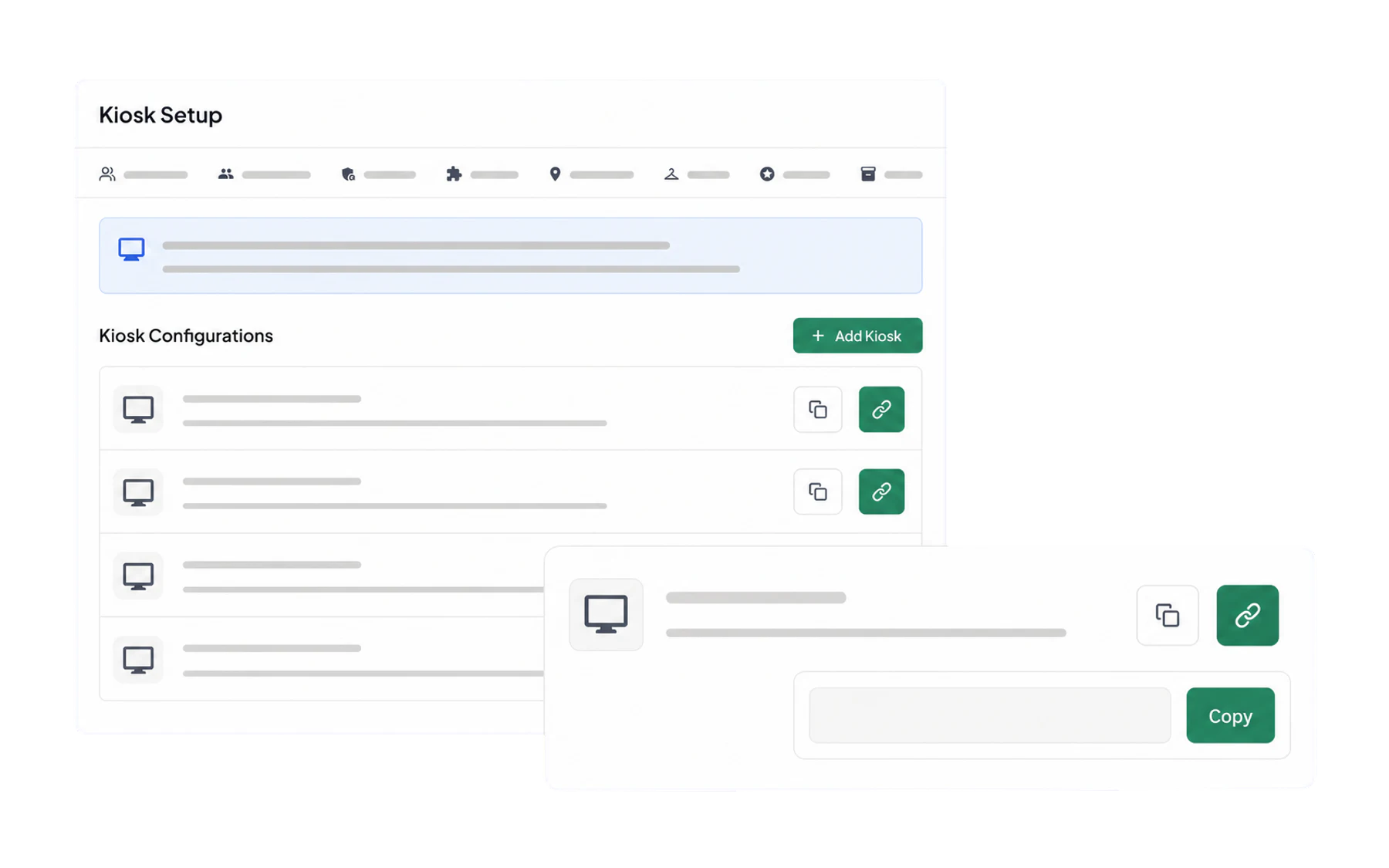
Creating one
- Open Admin → Kiosk Setup and create a kiosk. Name it after the place, not the device — Library counter ages better than iPad 3.
- Choose the destinations assigned to it, exactly as you would in Kiosk Mode.
- Decide on the options — whether student photos are shown, and whether the screen goes fullscreen as soon as it loads.
- Set a PIN if the device is somewhere students can reach it. The PIN is asked for when the kiosk is opened, not for every check-in.
- Pair the device. Vero generates a unique link and a QR code — scan it on the tablet, or paste the link into the display’s browser.
How access works
The link contains a token that identifies this kiosk. It is not a staff account: it can display open pass records whose expected destination is assigned to that kiosk and record a check-in, and nothing else. No Insights, no history, no admin, no other destinations.
Setting the device up properly
- Add the link to the home screen so it opens without browser chrome.
- Turn off auto-sleep, or the board is blank exactly when someone glances at it.
- Use guided access or kiosk mode on the device itself if students can reach it, so the browser cannot be navigated away.
- Keep it on power. A screen that is always on is a screen that is always flat.
Standalone or signed-in?
- Standalone when the screen belongs to a place and is shared by whoever is there. No sign-in, no shared password, and check-ins are attributed to the kiosk rather than a person.
- Signed-in Kiosk Mode when it is a staff member’s own machine, or when you want the check-in recorded against a named person.
Retiring one
Deactivate the configuration rather than deleting it. The link stops working, and the check-in history that screen produced stays where it is.