All guides
Read a student’s profile
Review Vero records associated with one student across enabled modules and a selected date range.
The Student Profile brings together records created in Vero that are associated with one student. Authorised staff can use it for a defined school purpose, such as preparing for an existing support meeting or checking the details behind a question already raised through school processes.
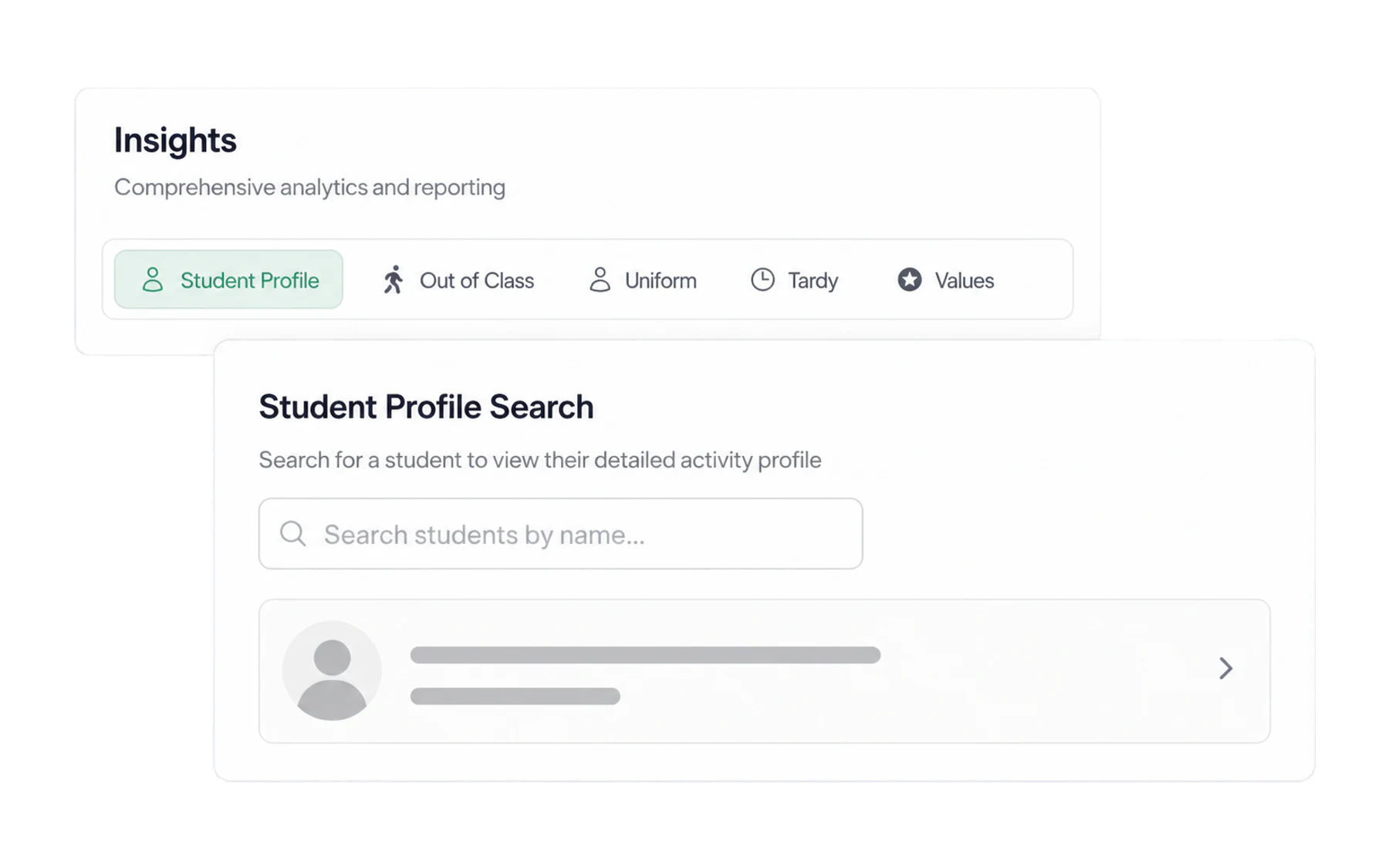
- Open Insights and choose the Student Profile tab.
- Type the student’s name and pick them from the results.
What the individual record view shows
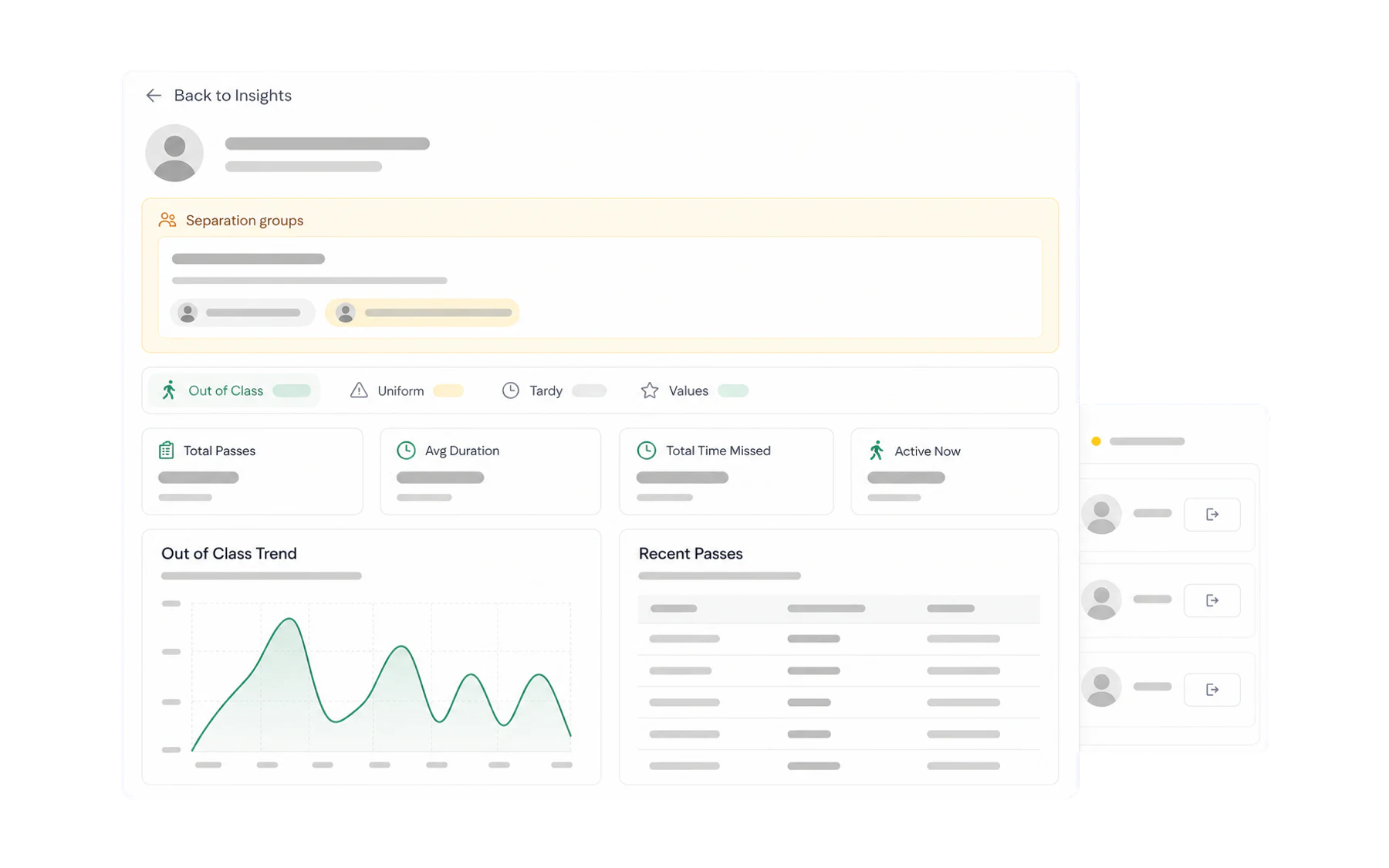
- Who they are — photo, year level, house, and the date range the page is showing.
- Separation groups — any separation arrangement this student is part of, shown up front so nobody discovers it by accident. See Create a Separation group.
- Module tabs with counts — Out of Class, Uniform, Late to Class, Values, each with its own number for the selected period. These are counts of records created in Vero, not a complete view of the student or their circumstances.
- Four figures — total passes, average recorded duration, total recorded open-pass time, and whether the student has an open pass record.
- Trend and recent activity — the daily chart, and the individual records beside it.
Read recorded time carefully
The interface label Total Time Missed adds the recorded duration of pass entries in the selected period. It does not verify the student’s physical location, the route they took, or how much learning they missed. Treat it as recorded open-pass time and validate the underlying entries before using it in a meeting or report.
Reviewing records responsibly
- Check data quality first. A change in counts can reflect a change in staff recording practice, timetable, or school routine.
- Check the timetable and date range. Repeated entries in one period can have an ordinary operational explanation.
- Do not infer health or wellbeing. A destination, duration, or repeated time does not establish a medical, behavioural, or pastoral cause.
- Use existing school processes. Records can add limited context to an authorised review; they should not select students for intervention or determine an outcome on their own.
Related
- Export to CSV — for a meeting pack.
- Encounter Detection — review overlapping open pass records.
- Create an alert rule — configure a role-restricted record-review notification.