Signing in to Vero
The same three ways in for every school — Google, Microsoft or email — the code some schools add, and what to do when none of them work.
Vero runs in a browser at app.vero.education — there is nothing to install. Every school sees the same sign-in screen, headed Welcome back, with three buttons: Continue with Google, Continue with Microsoft and Continue with email. Use the one that matches the account your school gave you.
Continue with Microsoft or Google
The usual route. Choose Continue with Microsoft if your school is on Microsoft 365, or Continue with Google if it is on Google Workspace. Vero hands you to that account’s own sign-in page; if you are already signed in on that device you land straight in Vero. There is no separate Vero password, so nothing extra to forget — and once IT disables your school account, you can no longer sign in to Vero with it.
Continue with email
Opens a form for your school email address and your Vero password. Enter both and choose Sign in.
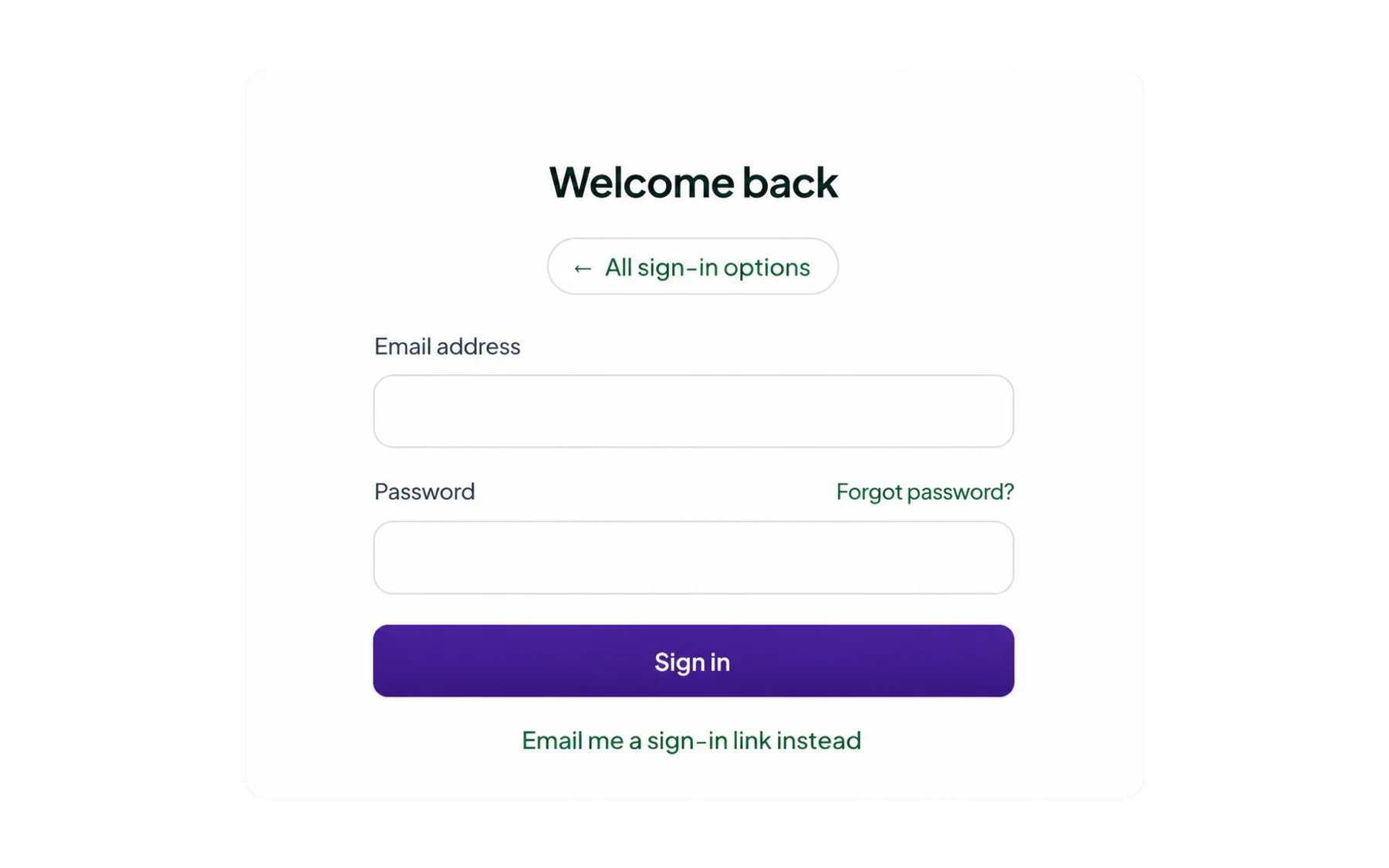
Email me a sign-in link
No password, or not sure of it? Choose Email me a sign-in link instead under the form. Vero emails a one-time link that signs you in when you open it — useful on a shared staffroom machine, on a relief day, or when a password reset has not come through yet. The link expires, and it only works once. On the phone app, the email button offers the password form only.
If you have forgotten your password
- On the password form, choose Forgot password?
- Enter your school email address and choose Send password-reset link. Vero sends a time-limited recovery link.
- Open the link and choose a new password. You are signed in straight away.
Sign in with your school
Under the three buttons is a smaller Sign in with your school → link. It is for a school that has had its own sign-in service connected to Vero: enter your school email address and Vero sends you to that service. If your school has not, Vero says school sign-in is not available for that address — use one of the three buttons instead.
The six-digit code (two-factor)
Vero asks for a six-digit code only if your school has turned it on. It stays off until a school administrator switches on Require multi-factor authentication for staff under Admin → Security. When the school also trusts its own Microsoft or Google sign-in (Vero turns this on once an administrator verifies with the school’s Microsoft or Google account), staff who use Continue with Microsoft or Continue with Google are not asked for a Vero code: their school’s sign-in does that check. Signing in by email still needs the code.
Where Vero does ask, the first time you sign in it shows Set up an authenticator app with a QR code:
- Open an authenticator app on your phone — Microsoft Authenticator, Google Authenticator, or whichever your school already uses.
- Scan the QR code on the Vero screen. If you cannot scan it, choose Cannot scan the QR code? and type the key it shows into the app instead.
- Enter the six-digit code the app generates and choose Verify and continue. That is set-up done.
- From then on, Vero asks for a current code when you sign in.
When you cannot get in
- “Access Removed.” Your account has been deactivated, usually because the staff list synced from your SIS no longer includes you. Your school administrator can restore it.
- Microsoft or Google signs you in but Vero does not. Your school account exists but has no matching Vero profile yet. An administrator adds you under Admin → Staff.
- Nothing arrives by email. Check the junk folder, then ask IT whether mail from
vero.educationis being filtered.