School branding
Add your logo, choose the school colour, and keep house colours distinct.
Admin → Branding controls how your school’s identity appears in Vero: your logo, site colour and house colours.
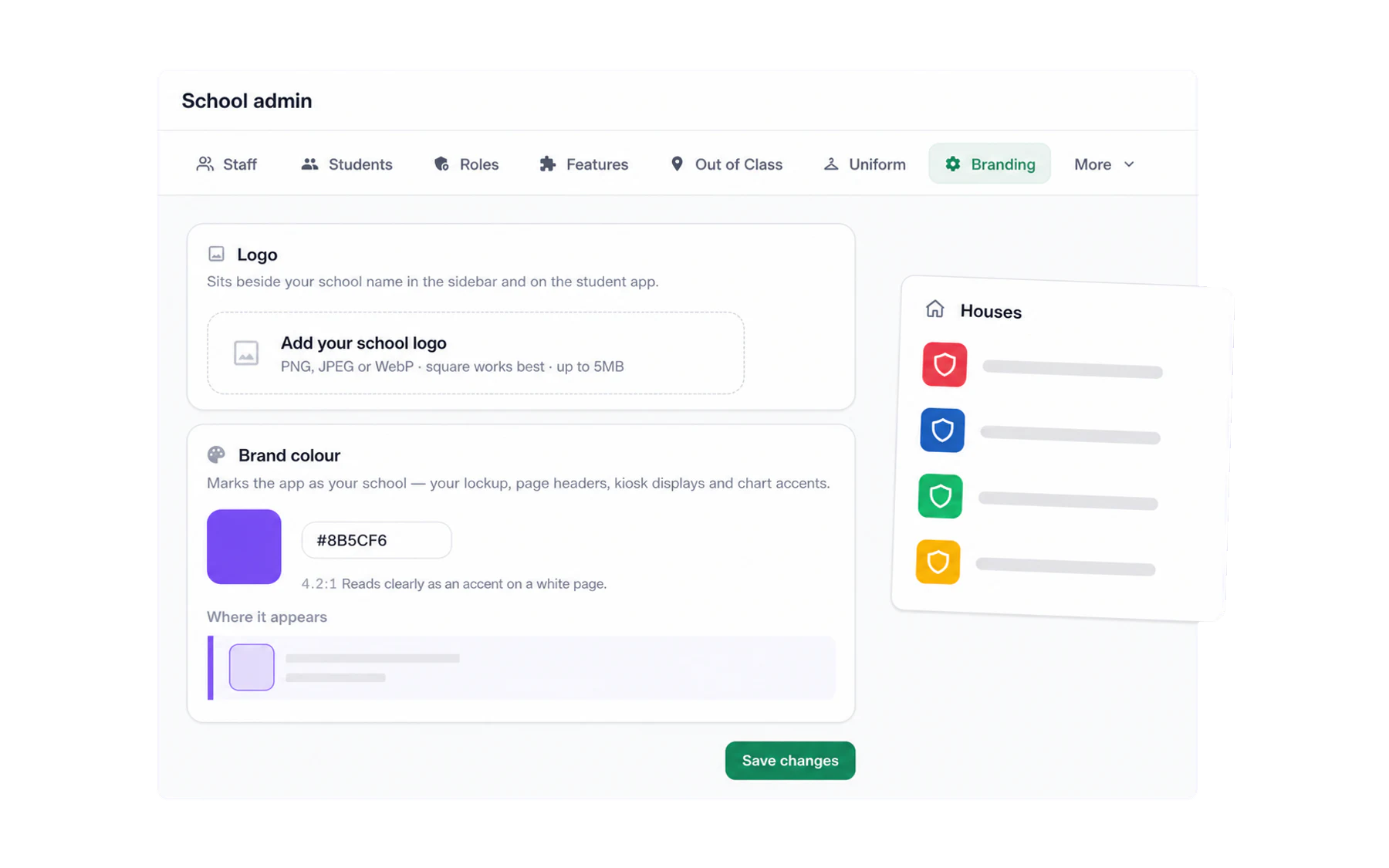
Your logo
Upload your school crest and it appears beside the school name in the staff sidebar and on the student app. It is a small thing that does real work: staff and students can immediately tell they are in the right school workspace.
A square or near-square image works best — a wide banner crest will be letterboxed.
Your colour
Branding has one colour, Site colour, and it is the one staff see most: it colours buttons, links, focus rings and selected controls, such as a switch that is on. Click the swatch to pick your school’s colour, or type its hex code, then choose Save changes.
Two places keep Vero’s own colours whatever you choose: the setup checklist under School admin › Get started, and the Vero phone app, which shows no school colour or logo.
House colours
Houses imported from your MIS appear as individual colour cards. Choose colours that are easy to tell apart at a glance; Vero warns you when two badges are too similar. Use Edit exact hex codes when you need to match an official palette precisely.